Guide
LWN Multi-Step Checkout
Classic Checkout
Table of contents
The classic checkout is WooCommerce’s original shortcode-based checkout. On this checkout, LWN Multi-Step Checkout is configured entirely from WooCommerce → Settings → Multi-Step Checkout, and it works through standard WooCommerce hooks — no template files are overridden.
Are You Using the Classic Checkout?
Open Pages → Checkout. You are on classic checkout if the page contains either:
[woocommerce_checkout]
…or the Classic Checkout block (not the Checkout block). If your theme is block-based, check the Checkout template in the Site Editor instead of the page.
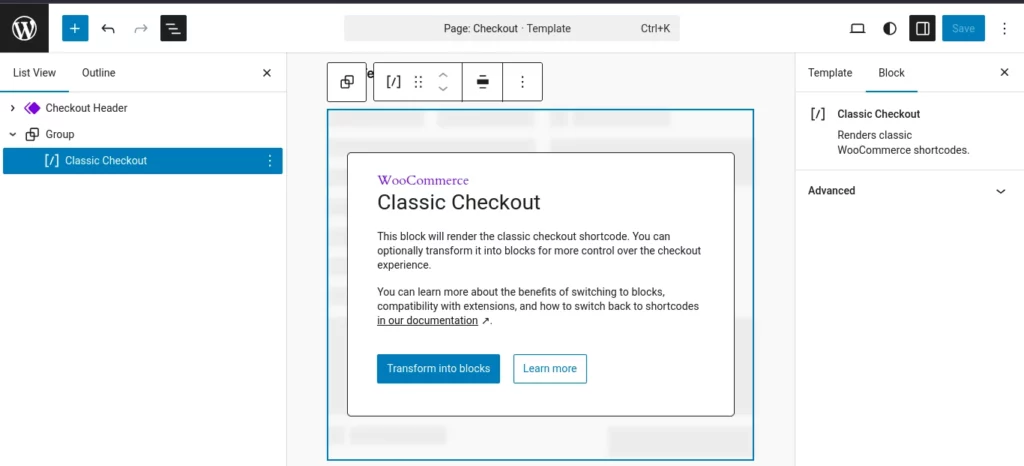
If the page contains the newer Checkout block instead, follow the Block Checkout guide — the settings tabs described below will not affect it.
Turn the Steps On
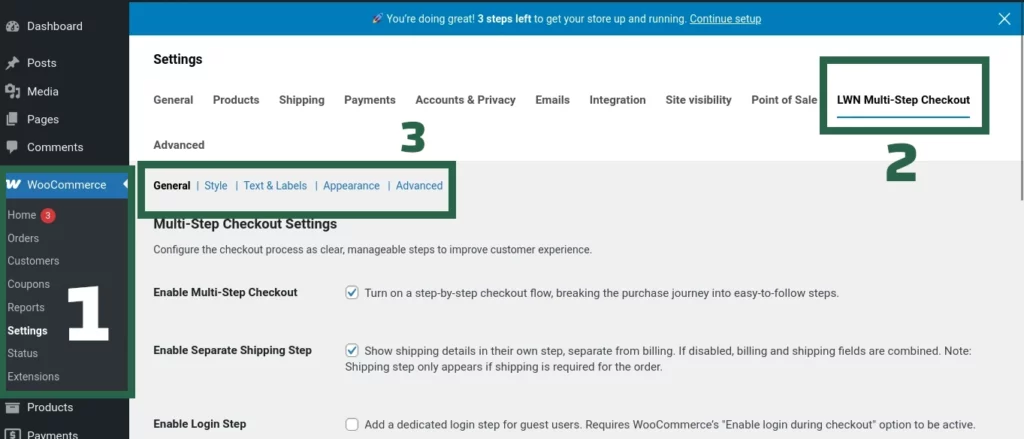 Multi Step Checkout settings tab">
- Go to WooCommerce → Settings → Multi-Step Checkout.
- On the General tab, make sure Enable Multi-Step Checkout is checked. It is on by default.
- Pick which steps you want, then Save changes.
The plugin ships with sensible defaults, so the checkout is already multi-step before you change anything.
The Step Flow
Classic checkout builds its steps from your General settings and from what the cart actually needs. The sequence is fixed; what varies is which steps appear:
- Login / Register — an optional dedicated sign-in screen. Requires WooCommerce’s own “allow customers to log in during checkout” option to be enabled, and it only shows for logged-out visitors.
- Billing & Shipping — combined into one step by default, or split into separate Billing and Shipping steps with Enable Separate Shipping Step.
- Coupon — an optional dedicated step. Off by default, in which case the coupon field stays in the review step.
- Review & Payment — one step by default, or two with Separate Order Review & Payment.
Steps that do not apply are simply not rendered — a cart of virtual products has no shipping step, and a logged-in customer never sees the login step.
Navigation and validation
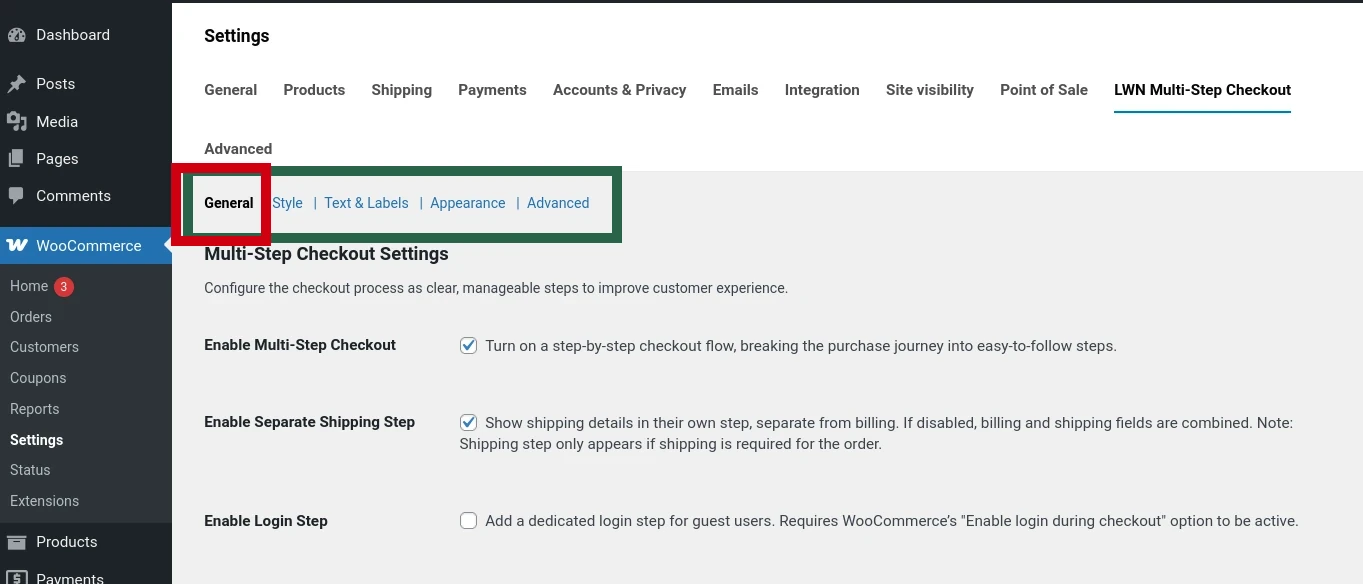
- Validate Steps Before Proceeding (on by default) — required fields on the current step must be filled before the customer can move on.
- Force Sequential Checkout (on by default) — customers work through the steps in order rather than jumping ahead.
- Show “Back to Cart” Button — an optional link back to the cart from the first step.
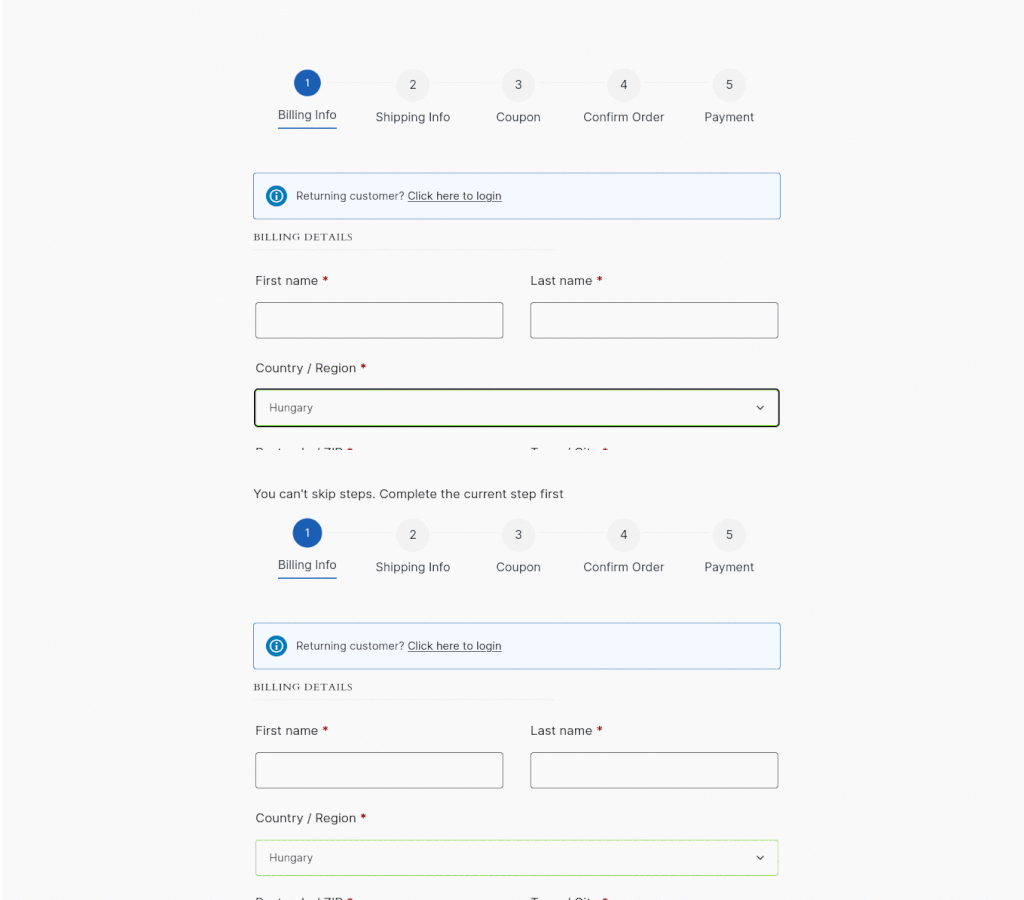
Where Each Setting Lives
- General Settings — which steps appear, validation, and sequential navigation.
- Styles & Colors — the step indicator style (default, breadcrumb, or icons), the loading animation, and your colors.
- Customize Texts — step names, button text, section headings, and messages. Plain text only; any HTML is stripped.
- Advanced Settings — reset to defaults, and export or import your settings as JSON.
How It Differs from Block Checkout
- Where you configure it — classic uses the settings tabs; block uses the block sidebar in the editor.
- Steps available — classic has login/register and dedicated coupon steps; block checkout has neither, because the Checkout Block handles those differently.
- Moving settings between sites — classic settings export and import as JSON. Block settings live in the page content and travel with the page.
- Page refresh — classic remembers the current step in the WooCommerce session, so a refresh returns the customer to it. Block checkout remembers it per browser tab.
- Extending it in code — classic exposes filters for button markup and colors, plus actions around navigation. The block checkout has no code-level hooks.
Troubleshooting
- Checkout looks unchanged — confirm Enable Multi-Step Checkout is checked, and that the page really uses the classic checkout and not the Checkout Block.
- The login step is missing — enable it in the plugin settings, enable login during checkout in WooCommerce’s own account settings, and test as a logged-out visitor.
- The coupon step is missing — coupons must be enabled under WooCommerce → Settings → General.
- The shipping step is missing — the cart does not require shipping, or shipping is not configured for the customer’s destination.
- All the errors appear at the end — turn on Validate Steps Before Proceeding.
- Customers cannot move back — turn off Force Sequential Checkout.
- The steps look misaligned — usually a theme conflict. Get in touch and we will look at compatibility.
The plugin does not override WooCommerce template files. It works through standard hooks, which is what keeps it out of the way of your theme and other extensions.