Guide
LWN Multi-Step Checkout
General Settings
Table of contents
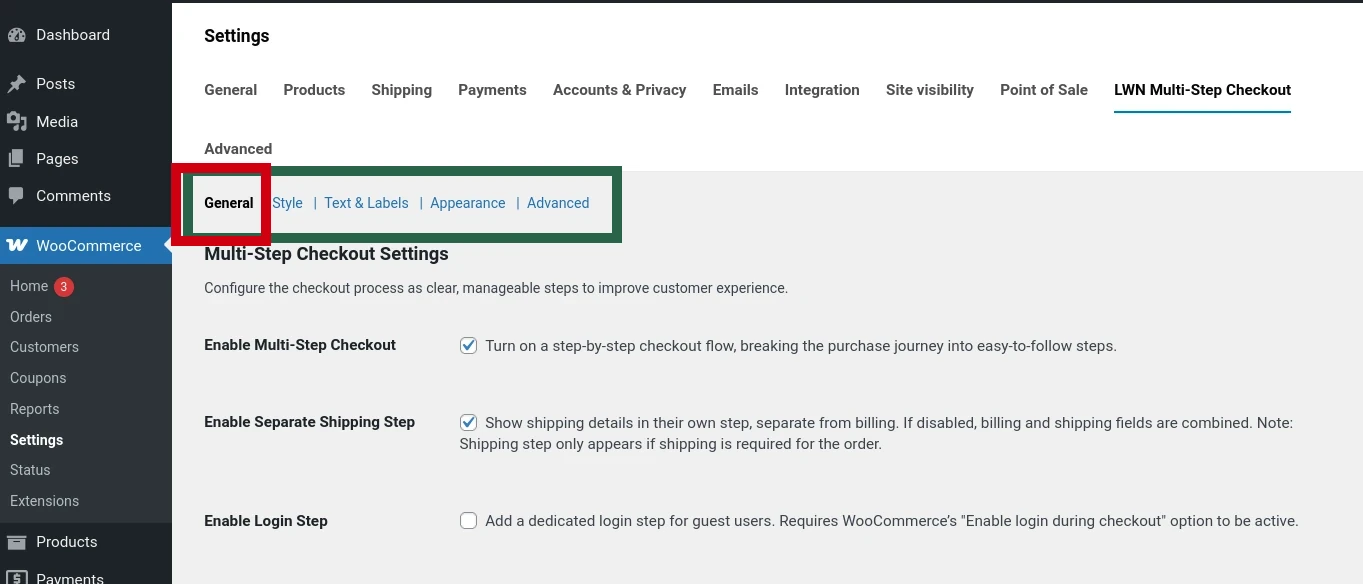
The General Settings allow you to control the overall behavior of your WooCommerce multi-step checkout flow.
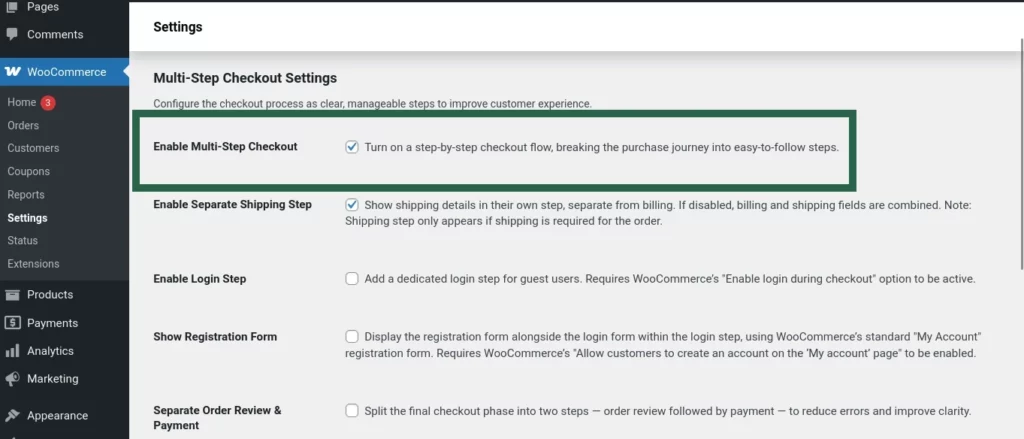
Enable Multi-Step Checkout
Turn on a step-by-step checkout flow, breaking the purchase journey into easy-to-follow steps.
Enable Separate Shipping Step
Display shipping details in their own step, separate from billing. When enabled, customers fill in shipping information in a dedicated step.
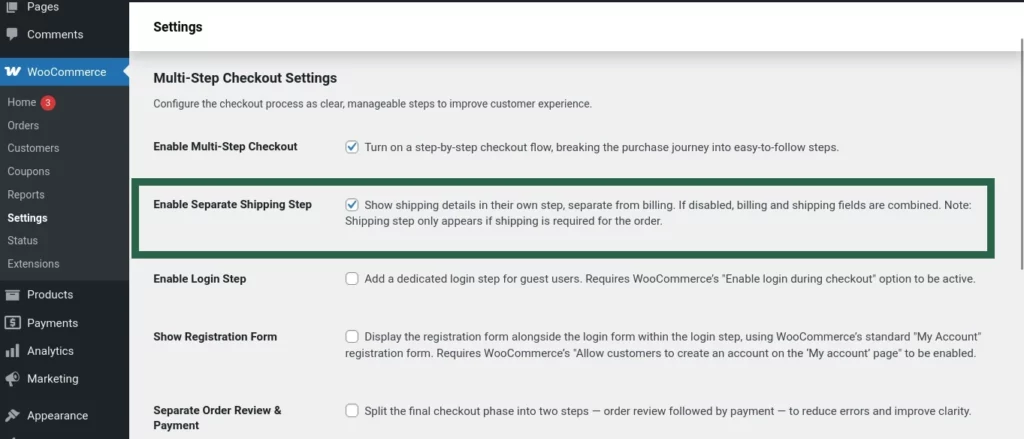
The shipping step is shown only when shipping is required for the order. If disabled, shipping and billing appear together.
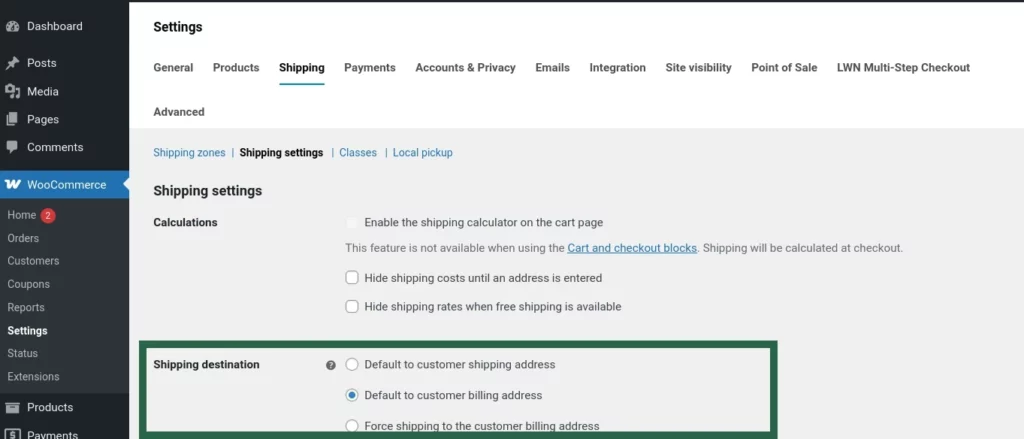
This feature is affected by WooCommerce's Shipping destination setting (WooCommerce → Settings → Shipping → Shipping Options): default to customer shipping address, default to customer billing address, or force shipping to the customer billing address.
Enable Login Step
Add a dedicated step for login or registration, giving guests a chance to sign in.
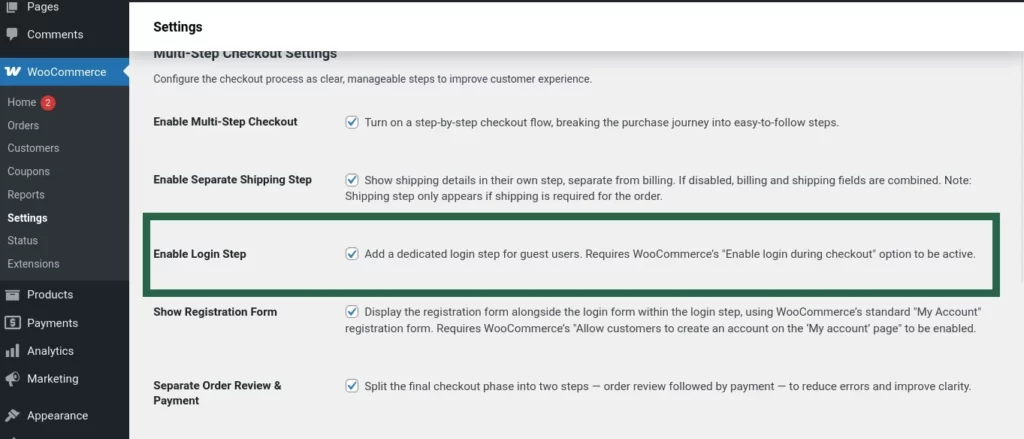
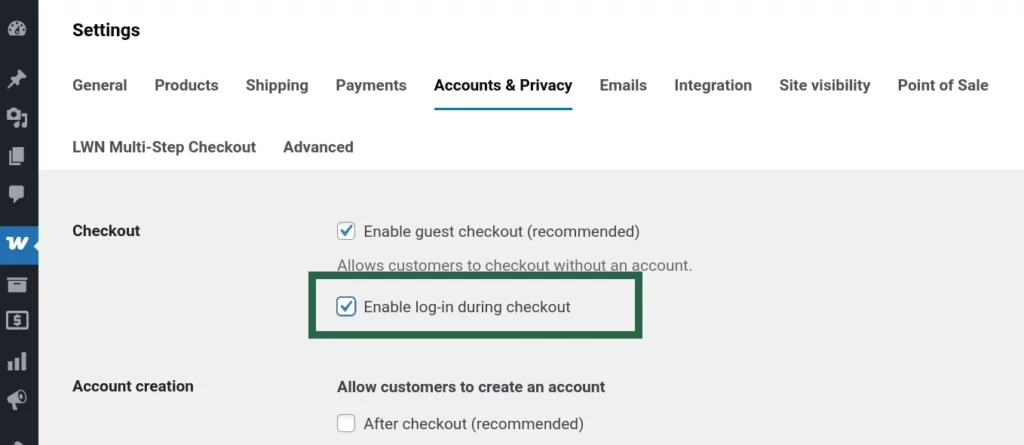
Requires WooCommerce's “Enable login during checkout” option to be active.
Show Registration Form
Enable this option to display the WooCommerce registration form next to the login form.
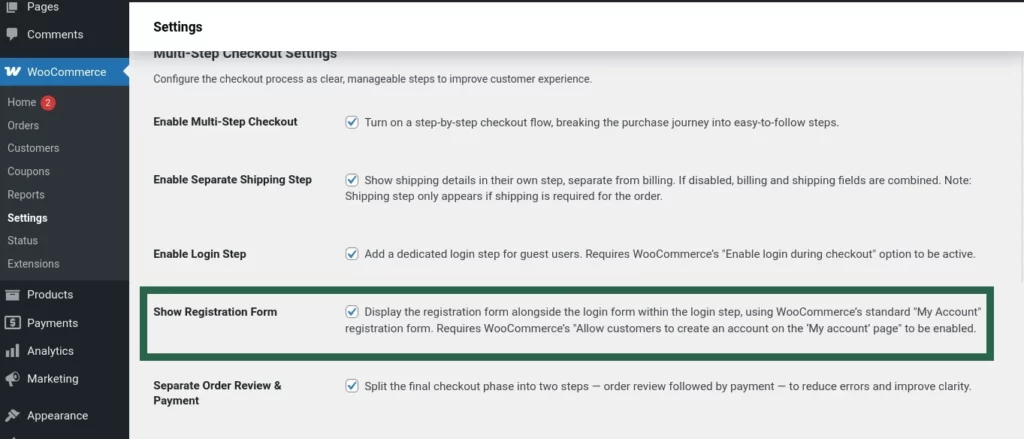
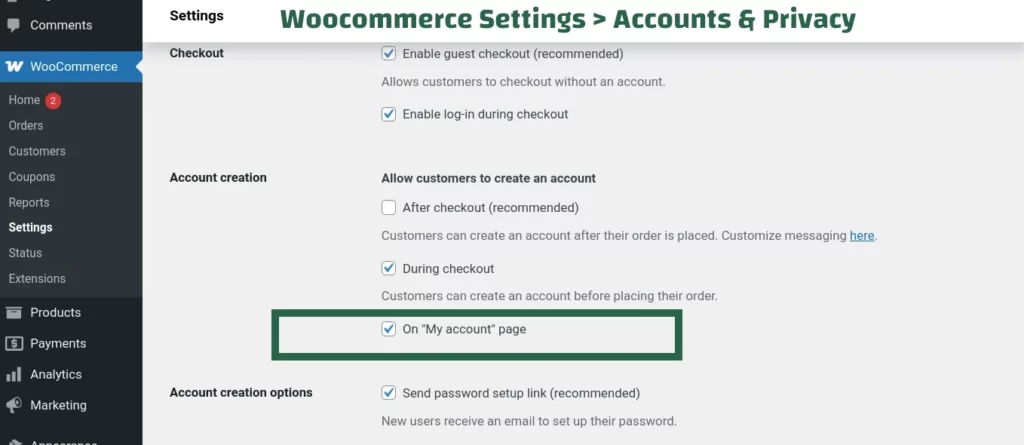
Requires WooCommerce's “Allow customers to create an account on the ‘My account’ page” setting to be enabled.
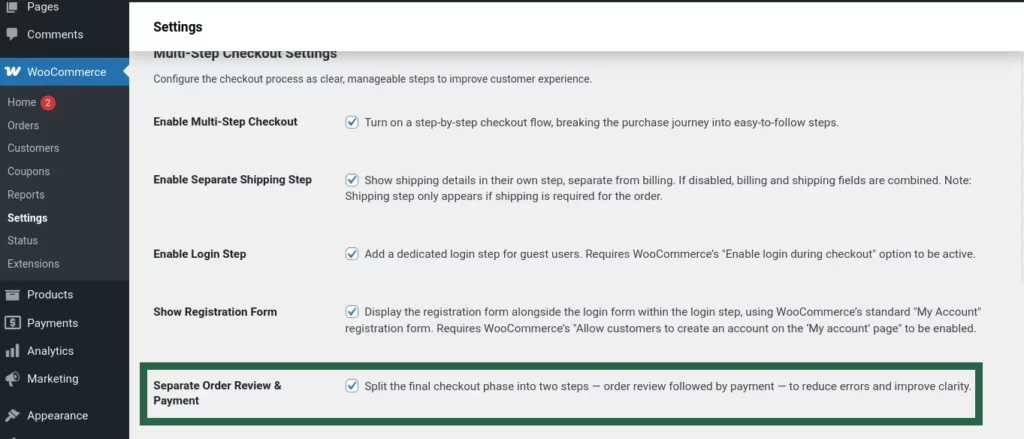
Separate Order Review & Payment
Enable this option to divide the final checkout phase into two distinct steps: first the Order Review, then Payment.
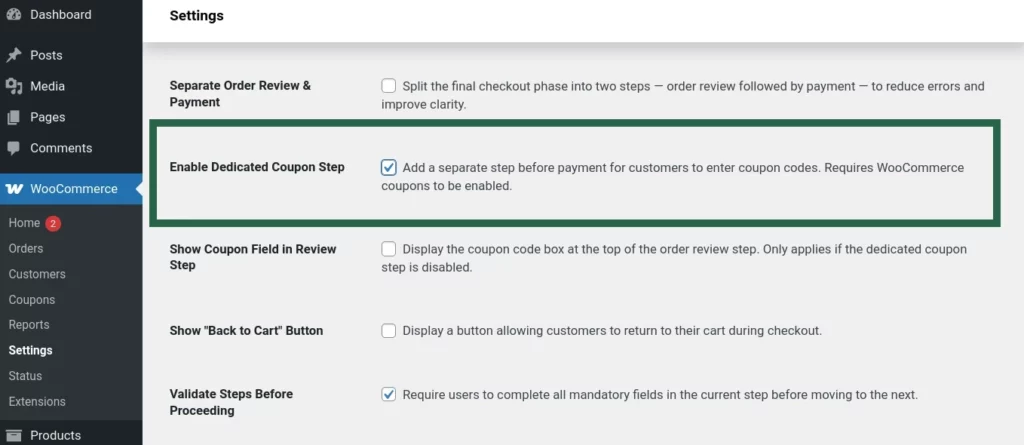
Enable Dedicated Coupon Step
Enable this option to add a separate step specifically for applying coupon codes. Requires WooCommerce → Settings → General → Enable coupons.
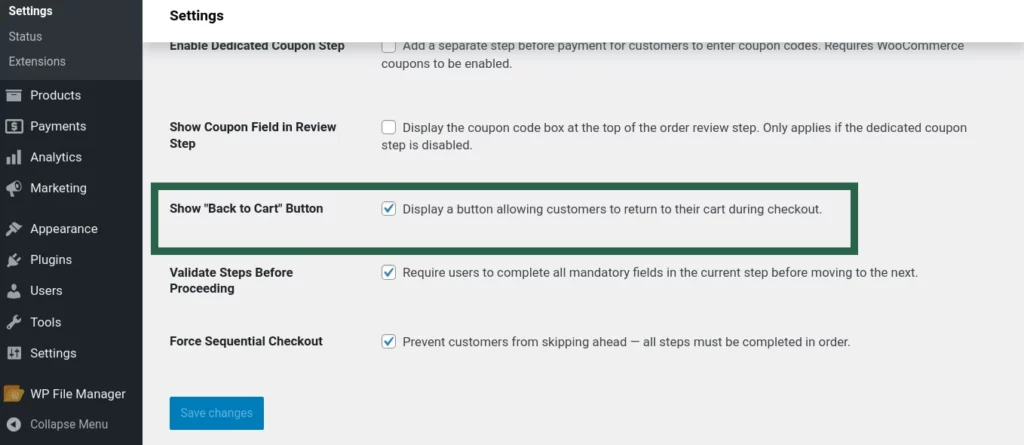
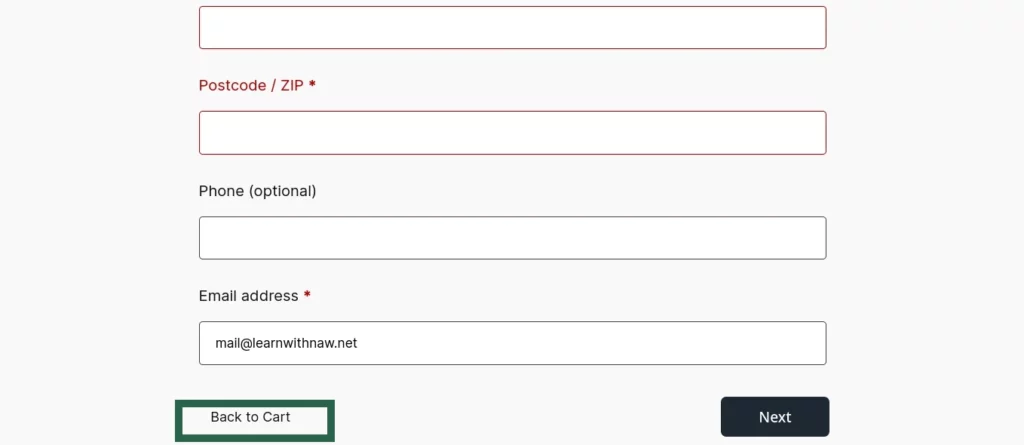
Show “Back to Cart” Button
Enable this option to display a Back to Cart button during checkout, giving customers a convenient way to return to their cart.
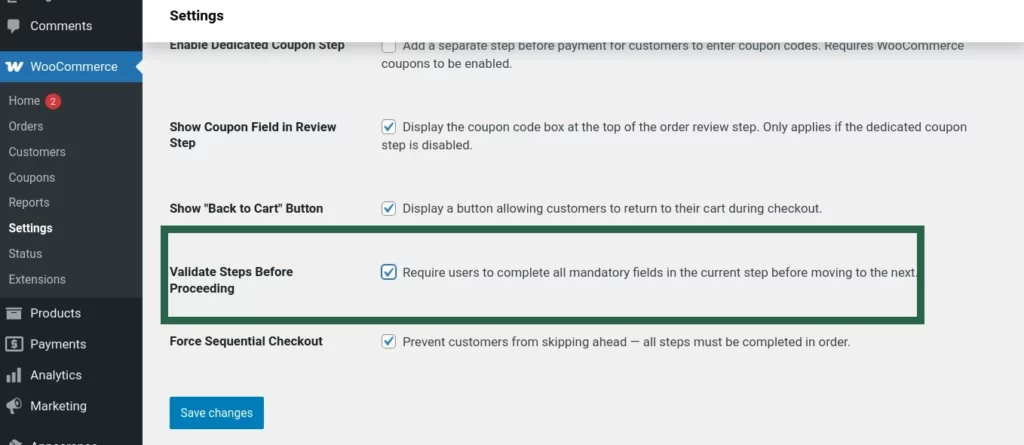
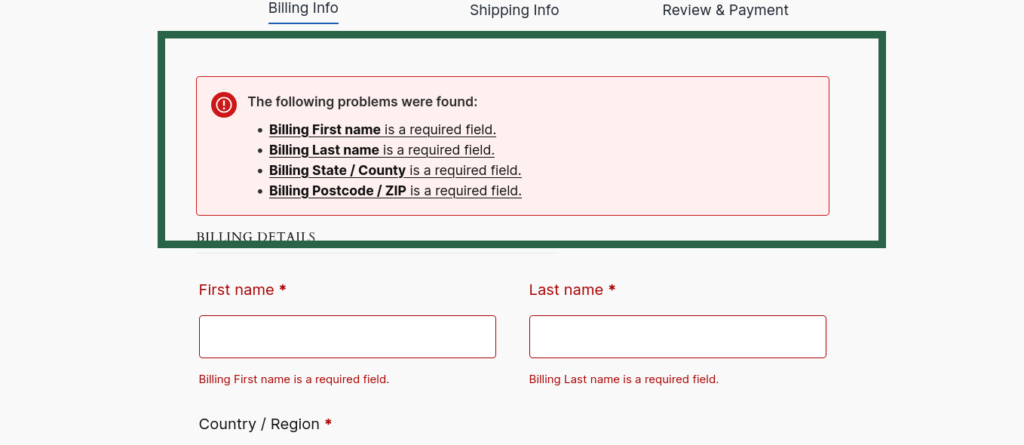
Validate Steps Before Proceeding
Enable this option to enforce step-by-step validation during checkout. Customers must complete all required fields before moving forward.
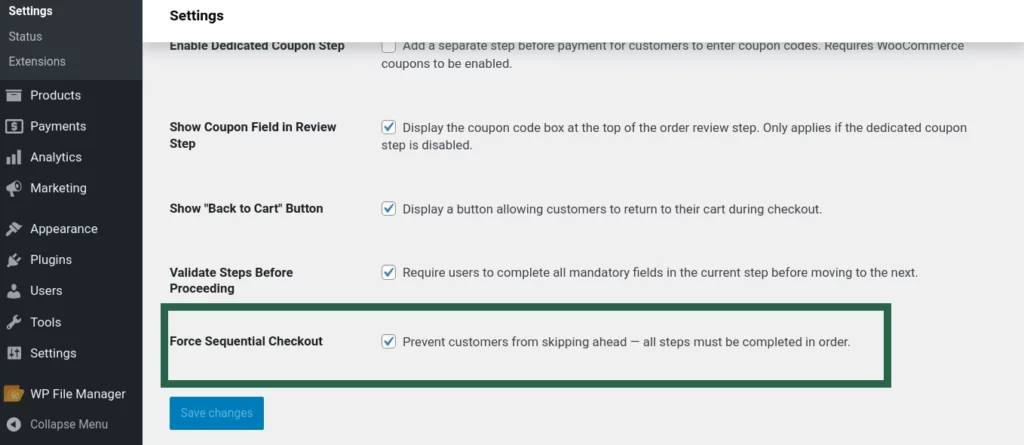
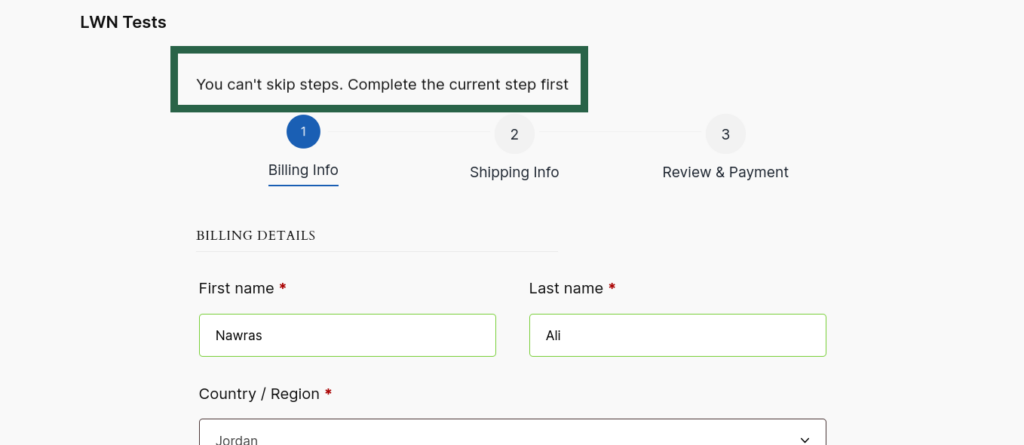
Force Sequential Checkout
Enable this option to require customers to complete each checkout step in sequence without skipping ahead.