Guide
LWN Multi-Step Checkout
Advanced Settings
Table of contents
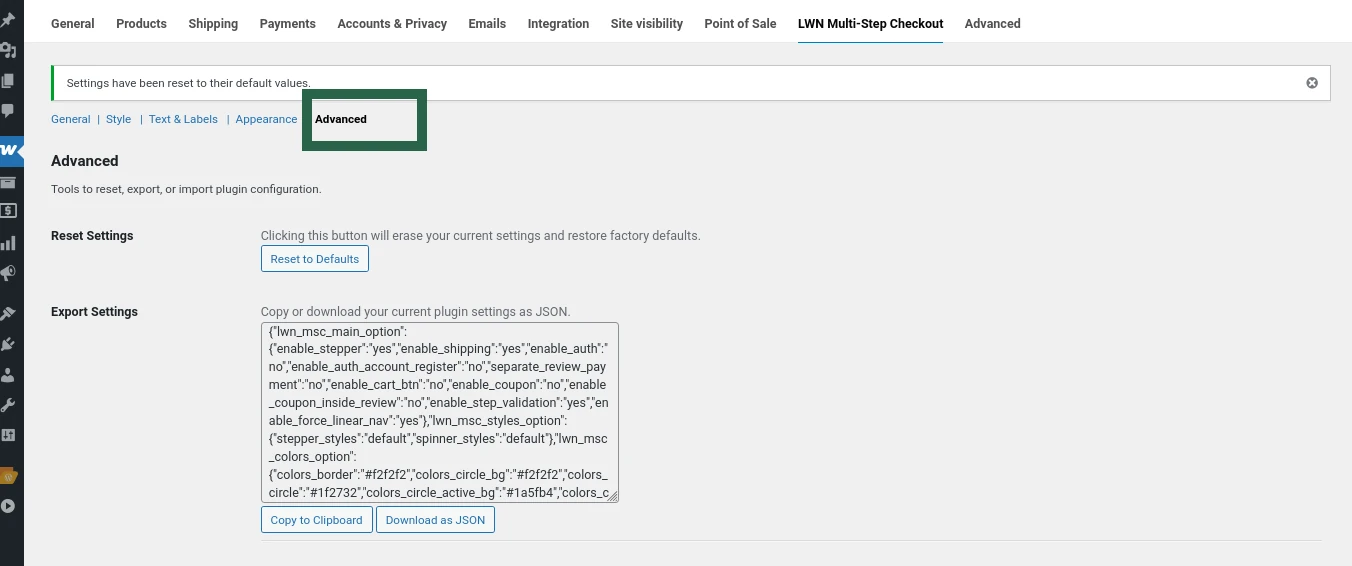
The Advanced Settings section allows you to manage your plugin configurations efficiently. You can reset all settings, or export/import your configuration.
The Advanced Settings Tab
- Go to your WordPress dashboard.
- From the sidebar, navigate to WooCommerce > Settings > LWN Multi-Step Checkout.
- Click on the Advanced tab.
Reset Settings
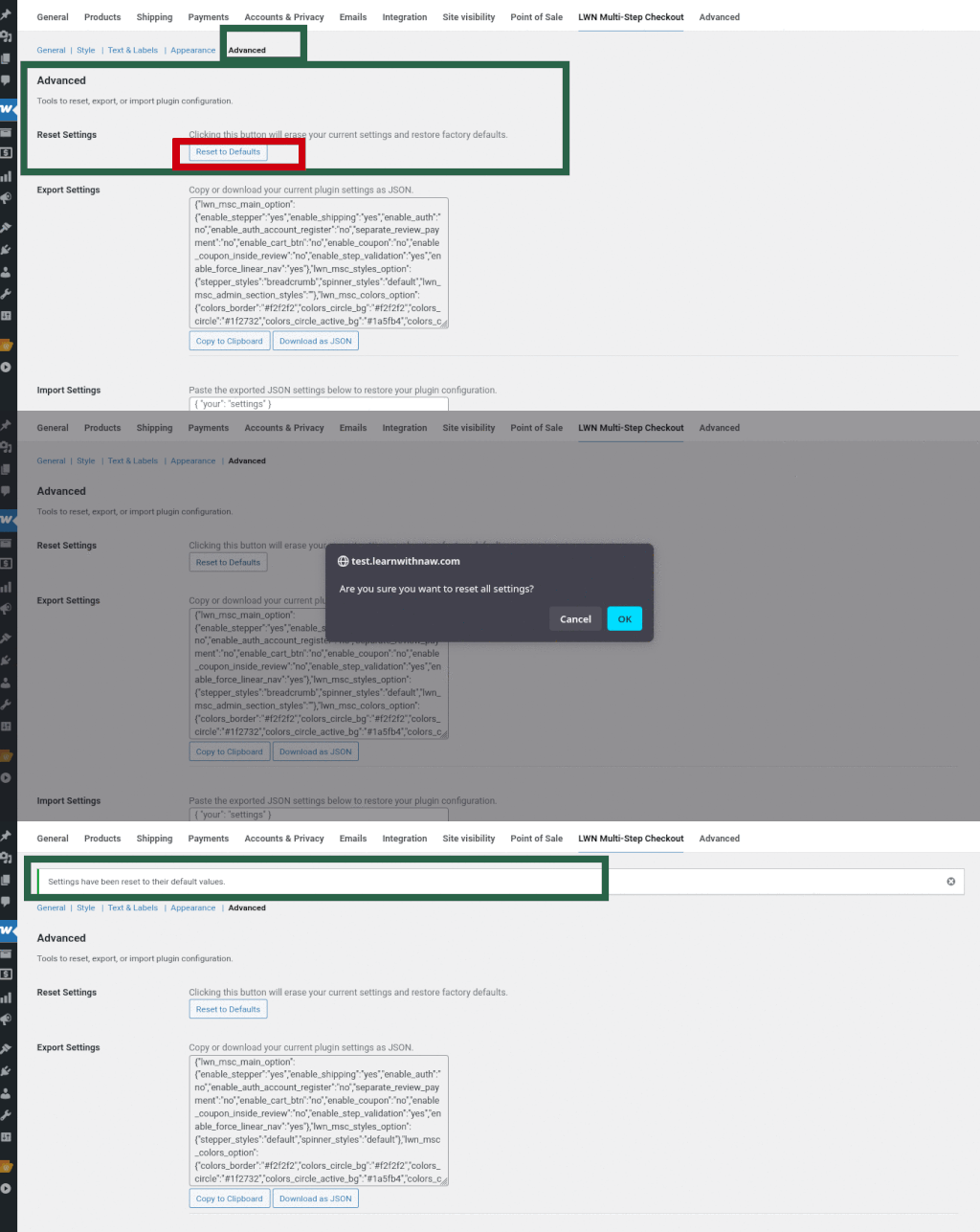
Clicking the Reset to Defaults button will erase all your current plugin settings and restore them to the original factory defaults.
Please note that this change cannot be undone.
Export Settings
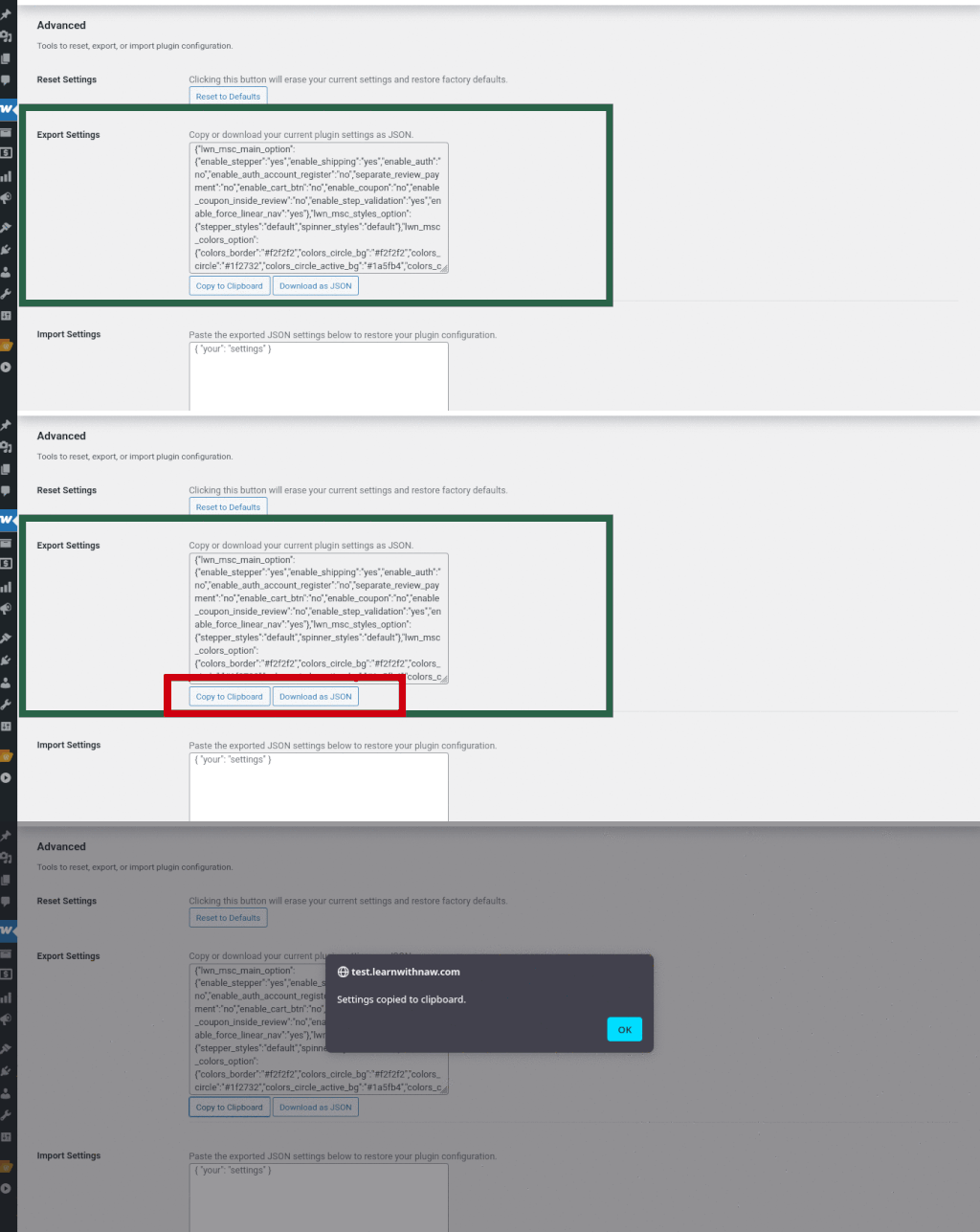
Easily back up your current plugin settings by exporting them as a JSON file. You can either download the file or copy the configuration to your clipboard — useful for saving your configuration for future use or transferring it to another site.
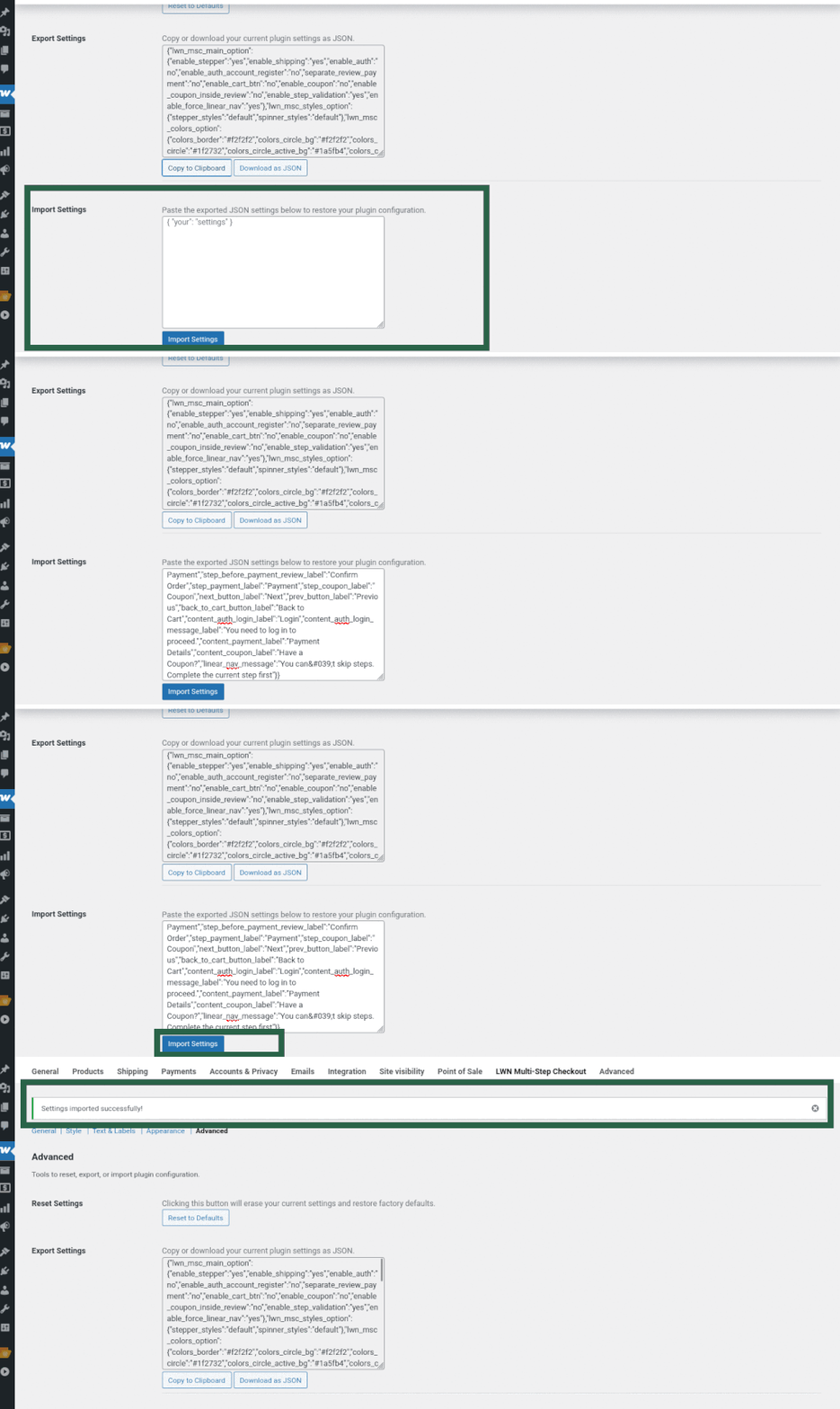
Import Settings
Restore your plugin configuration by pasting a previously exported JSON settings file into the text area, then click Save Changes.