Guide
LWN Multi-Step Checkout
Customize Texts
Table of contents
This section lets you personalize all labels, headings, and messages throughout your WooCommerce multi-step checkout.
How to Customize Texts & Labels?
- Go to your WordPress dashboard.
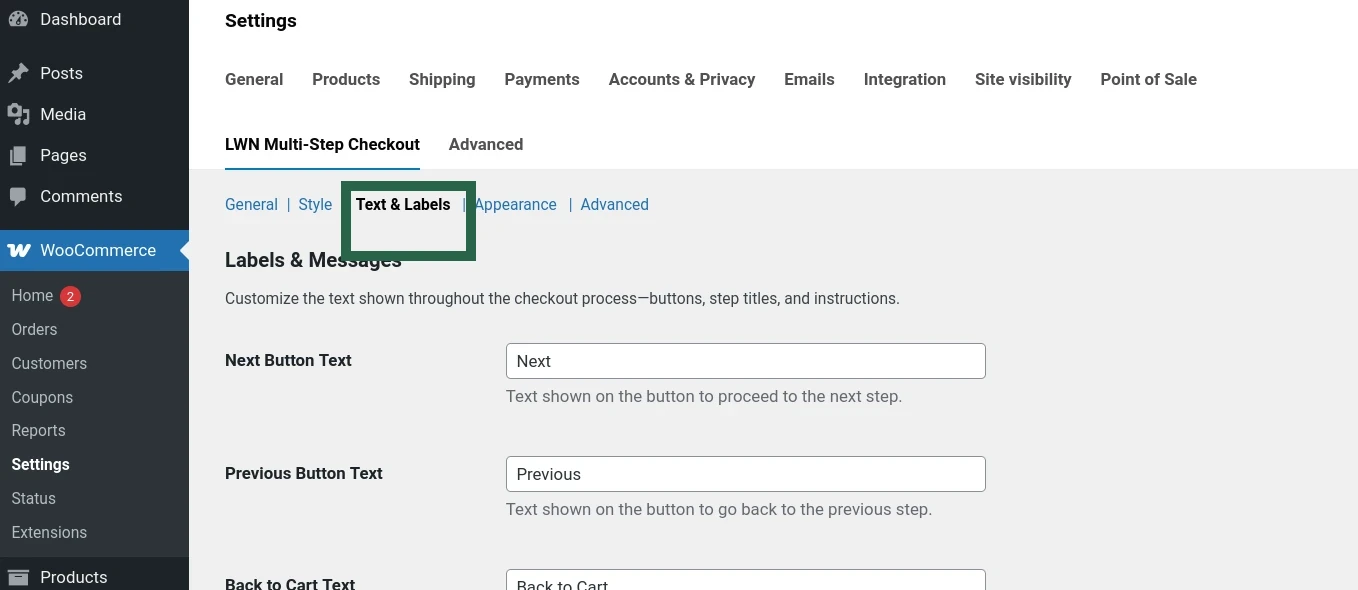
- From the sidebar, navigate to WooCommerce > Settings > LWN Multi-Step Checkout.
- Click on the Text & Labels Settings tab.
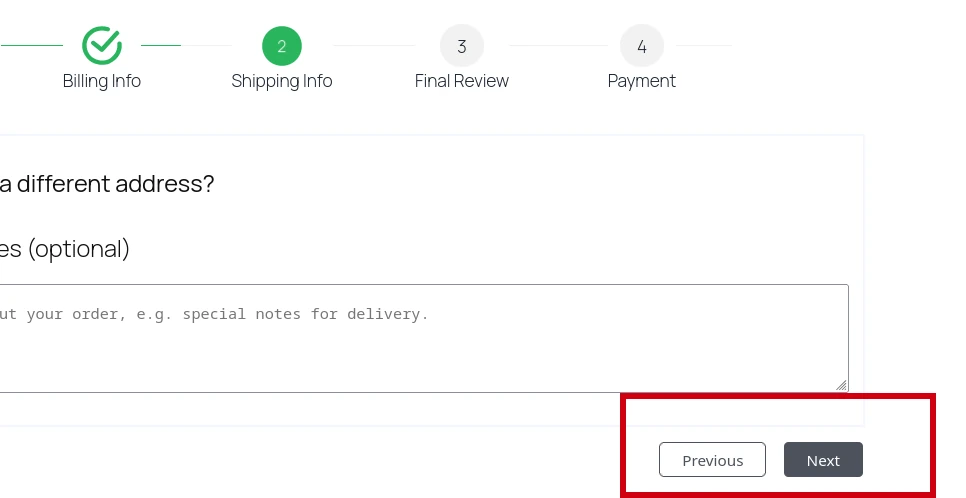
Next & Previous Button Text
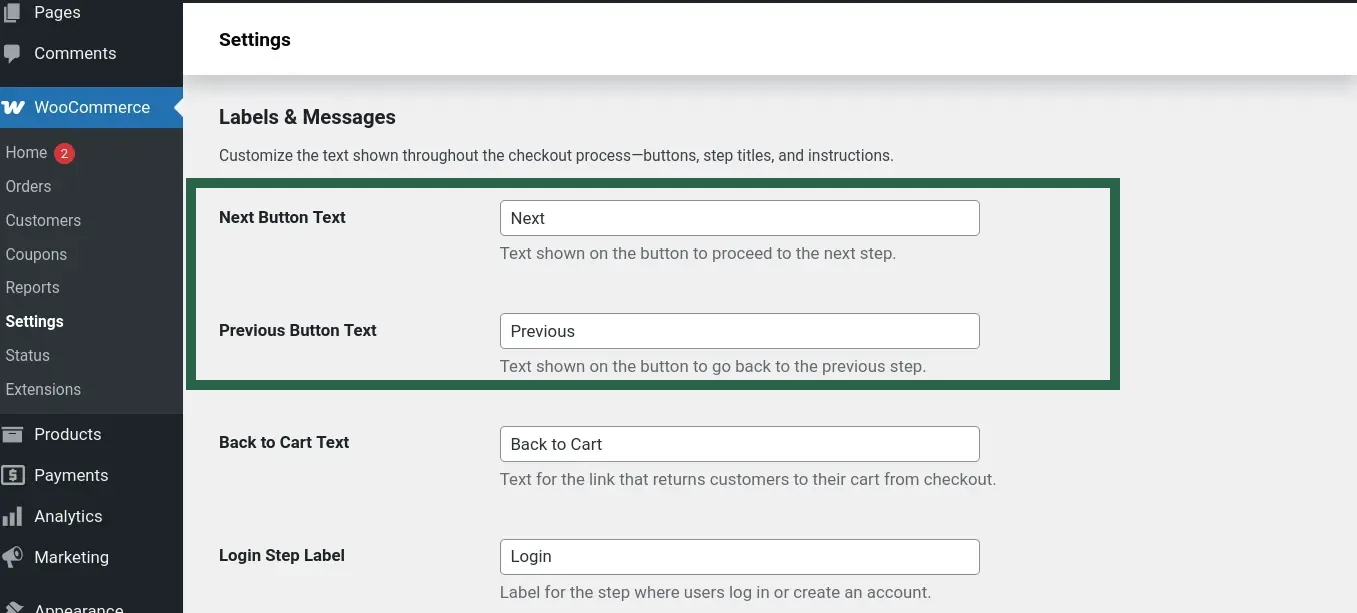
Customize the text displayed on the navigation buttons during checkout.
- Next Button Text: The label shown on the button that moves the customer to the next step.
- Previous Button Text: The label shown on the button that takes the customer back to the previous step.
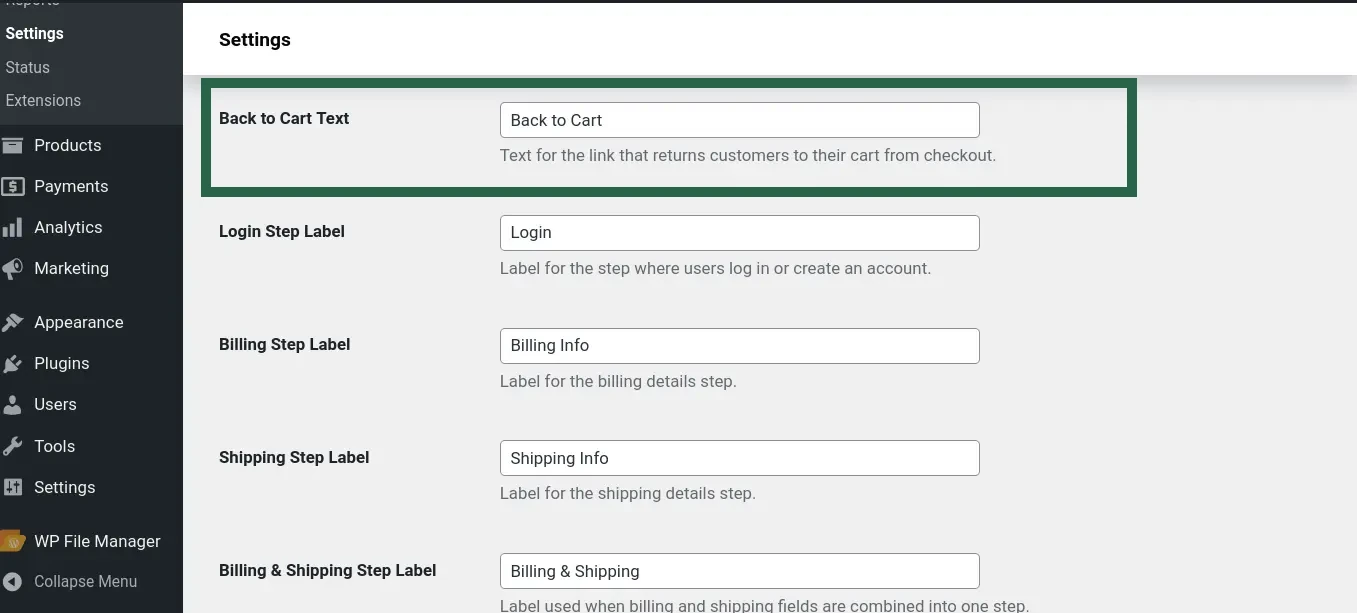
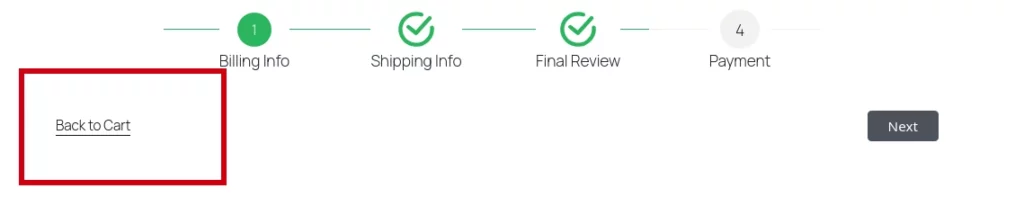
Back to Cart Text
Customize the text displayed for the link that allows customers to return from the checkout to their cart.
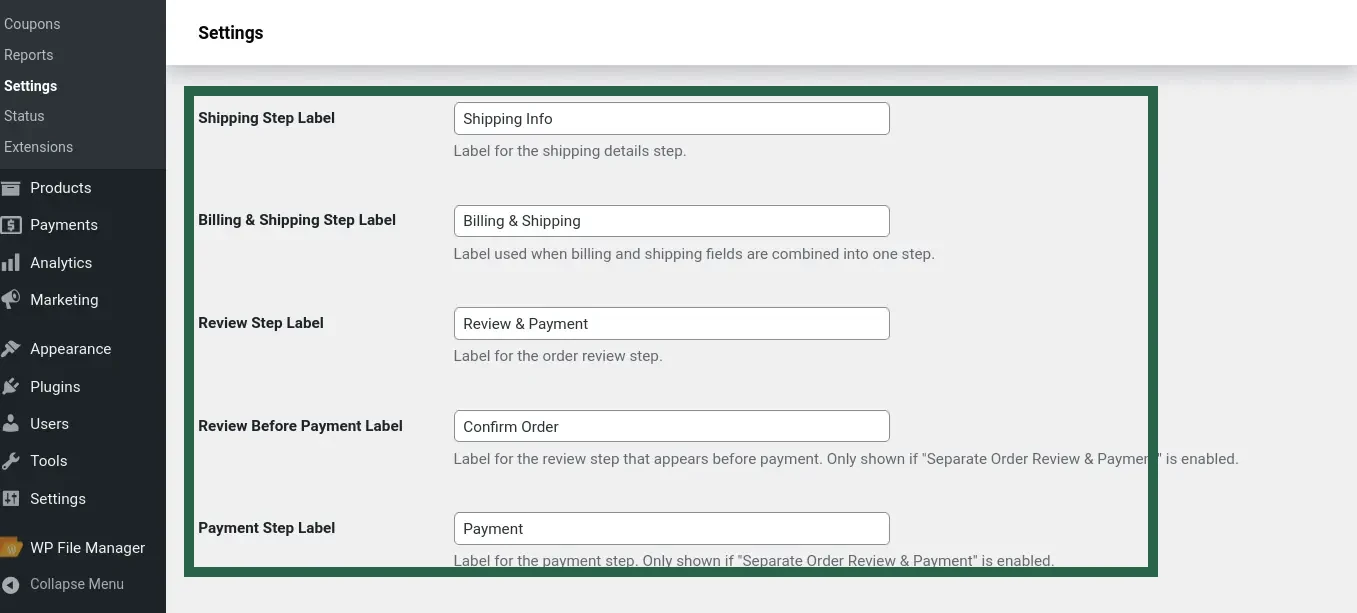
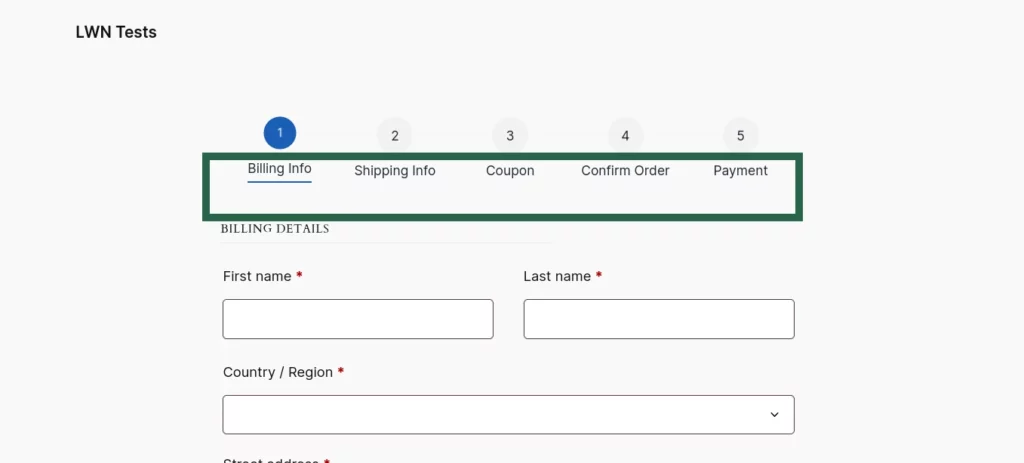
Customize Step Labels
Customize the labels for each step in the multi-step checkout process to match your store's language and style.
Login/Register Texts
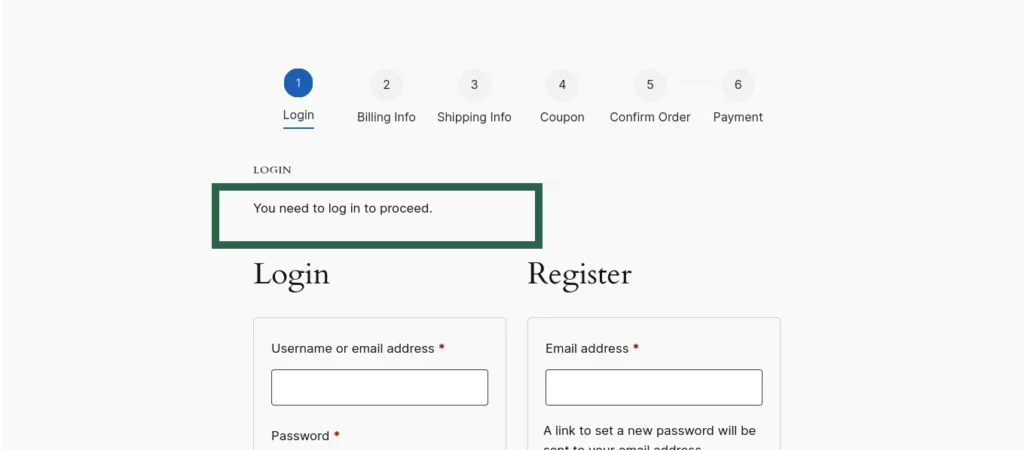
Set the heading and message displayed in the login step of the checkout.
Login/Register Heading: Title shown above the login and registration forms.
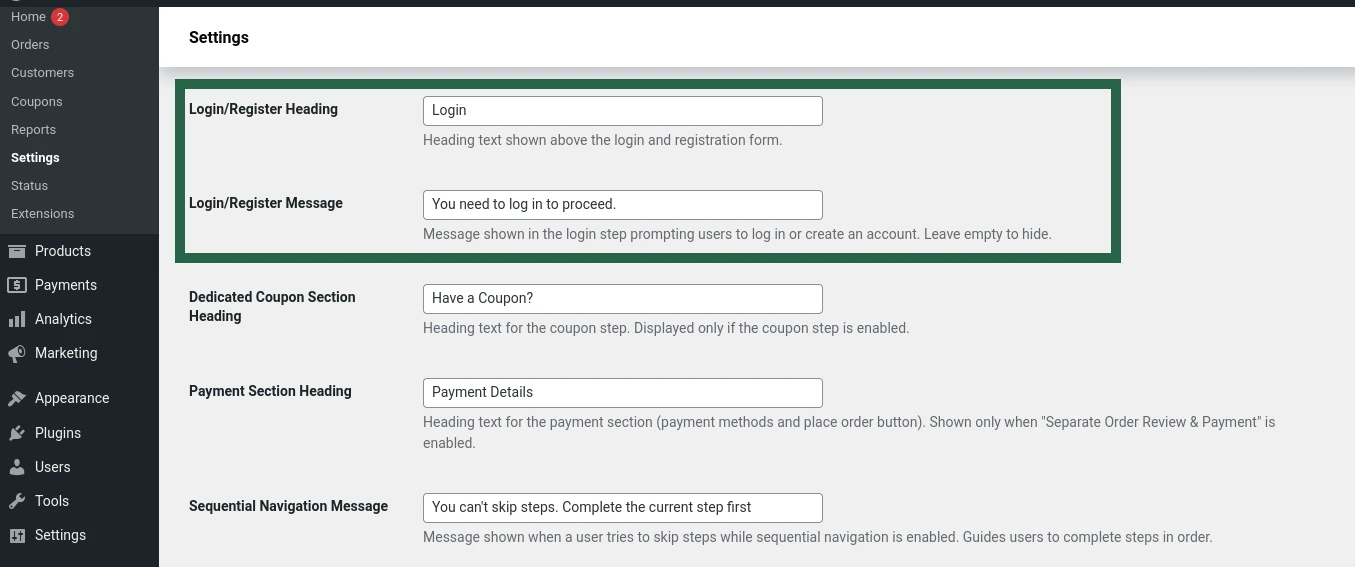
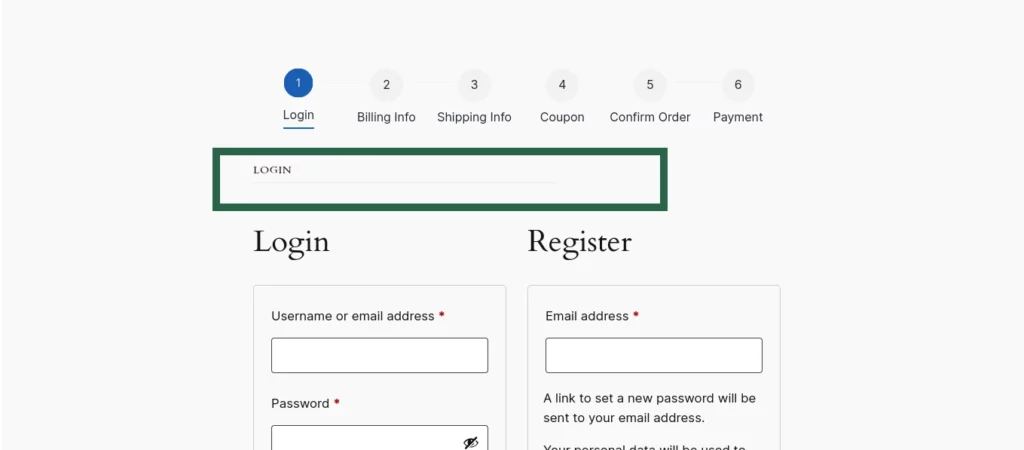
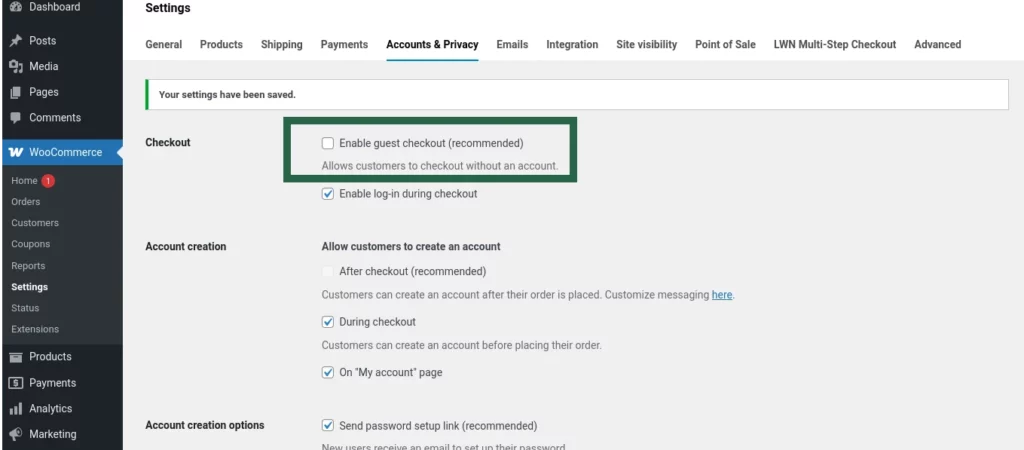
Login/Register Message: Message shown when guest checkout is disabled and a user attempts to proceed without logging in.
Section Headings for Coupon & Payment
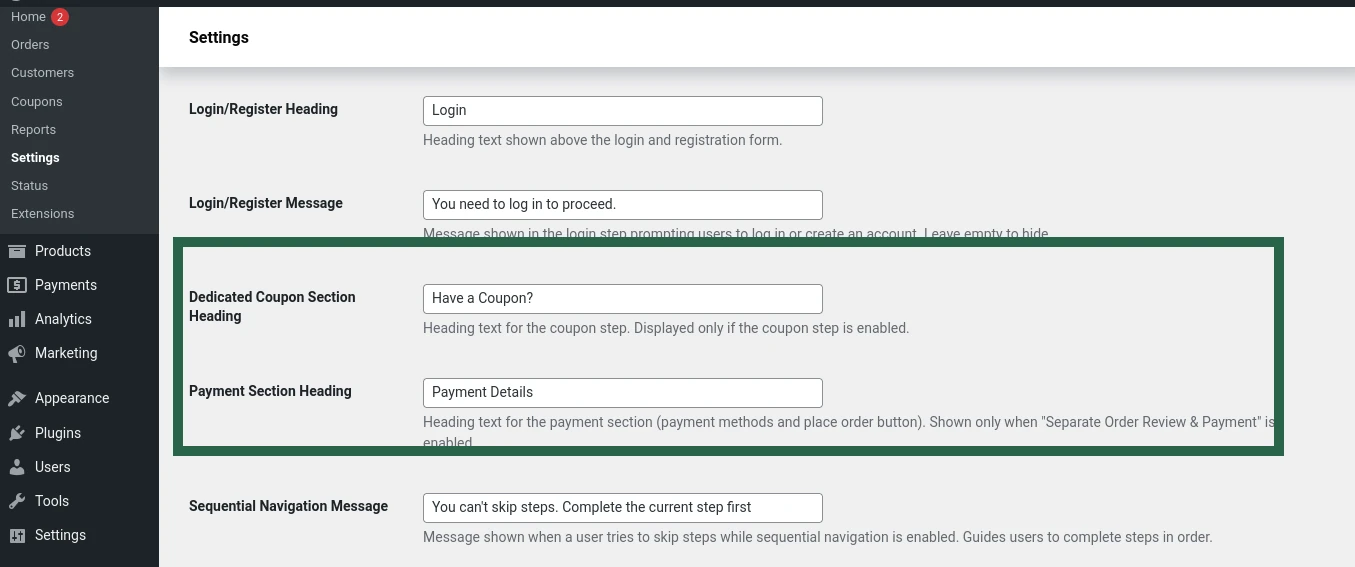
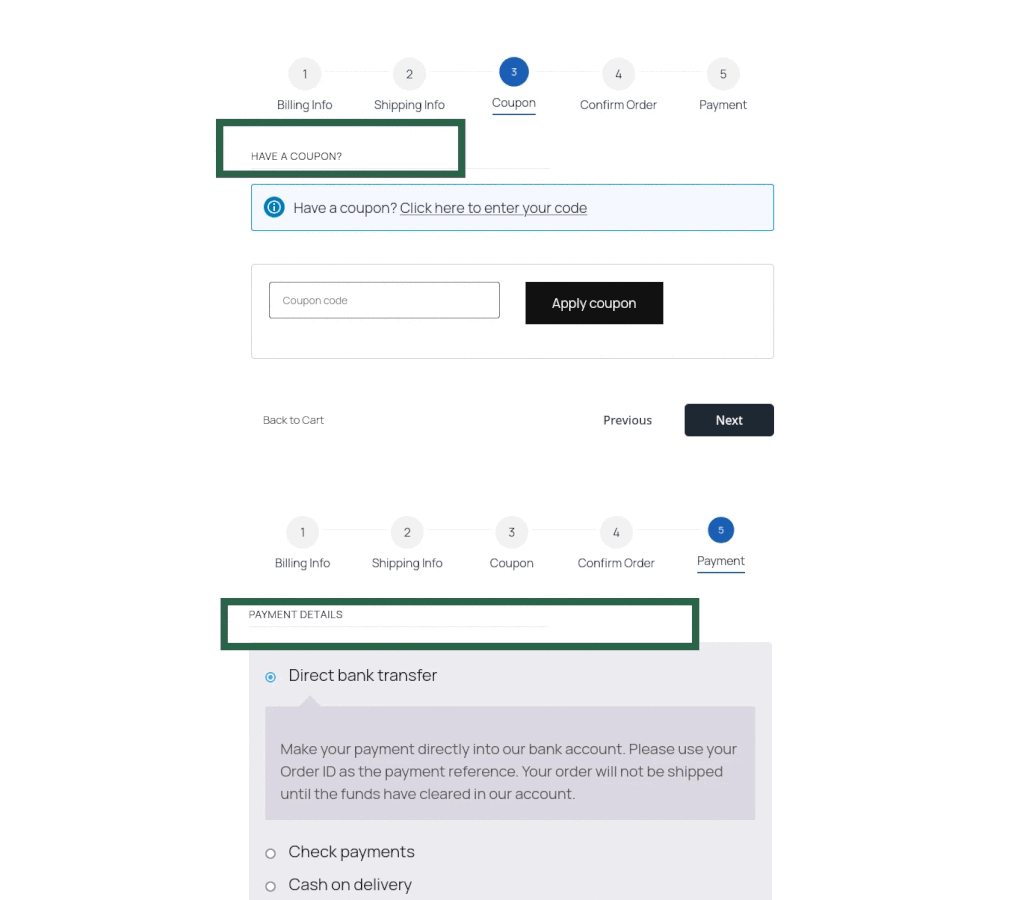
Dedicated Coupon Section Heading: Title displayed at the top of the coupon step, shown only if the dedicated coupon step is enabled.
Payment Section Heading: Title for the payment methods and place order area, visible only when Separate Order Review & Payment is enabled.
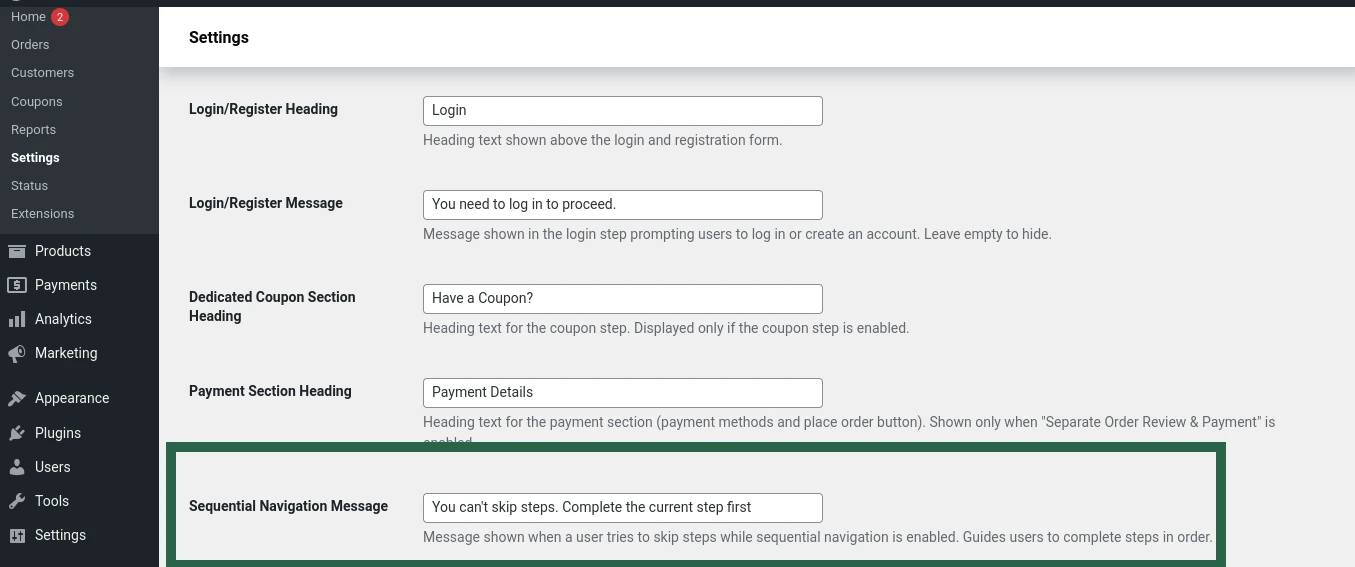
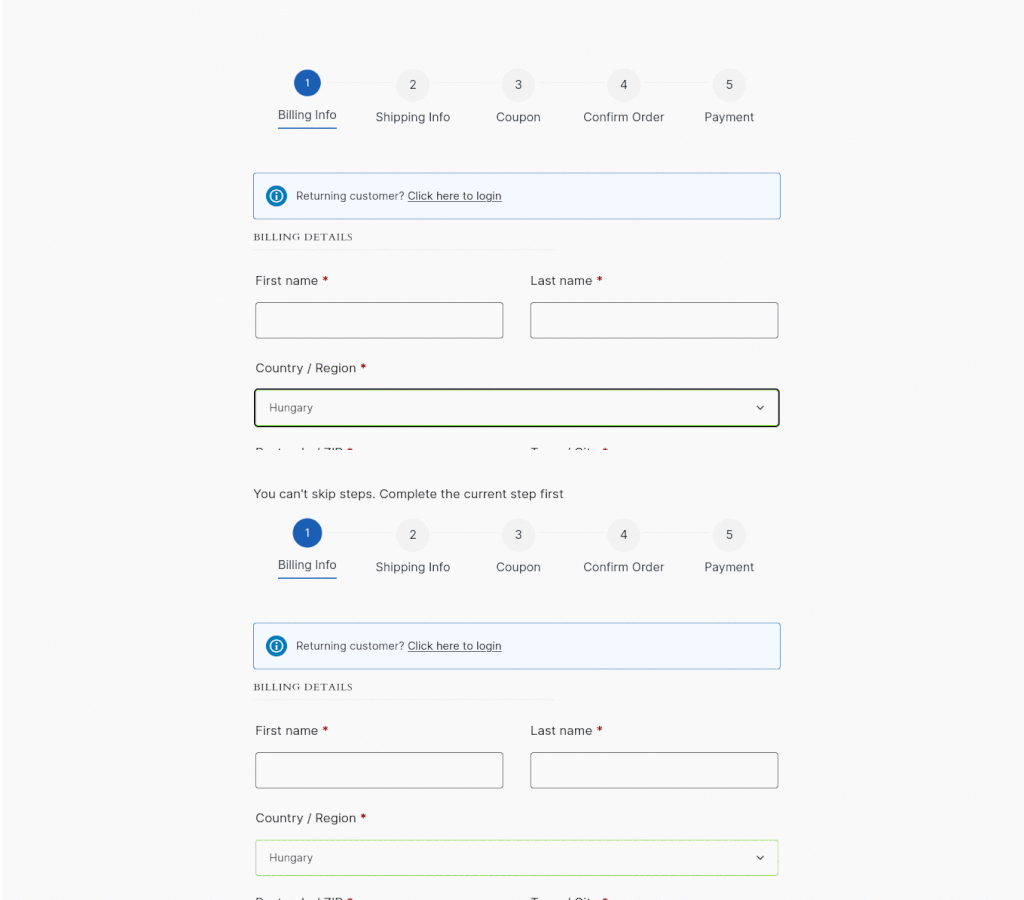
Sequential Navigation Message
Set the message displayed when a customer attempts to skip ahead in the checkout process while Force Sequential Checkout is enabled.